Customers
Customers is where you keep the companies you work with — contact details, sales rep, a revenue snapshot, and activity.
How to get there
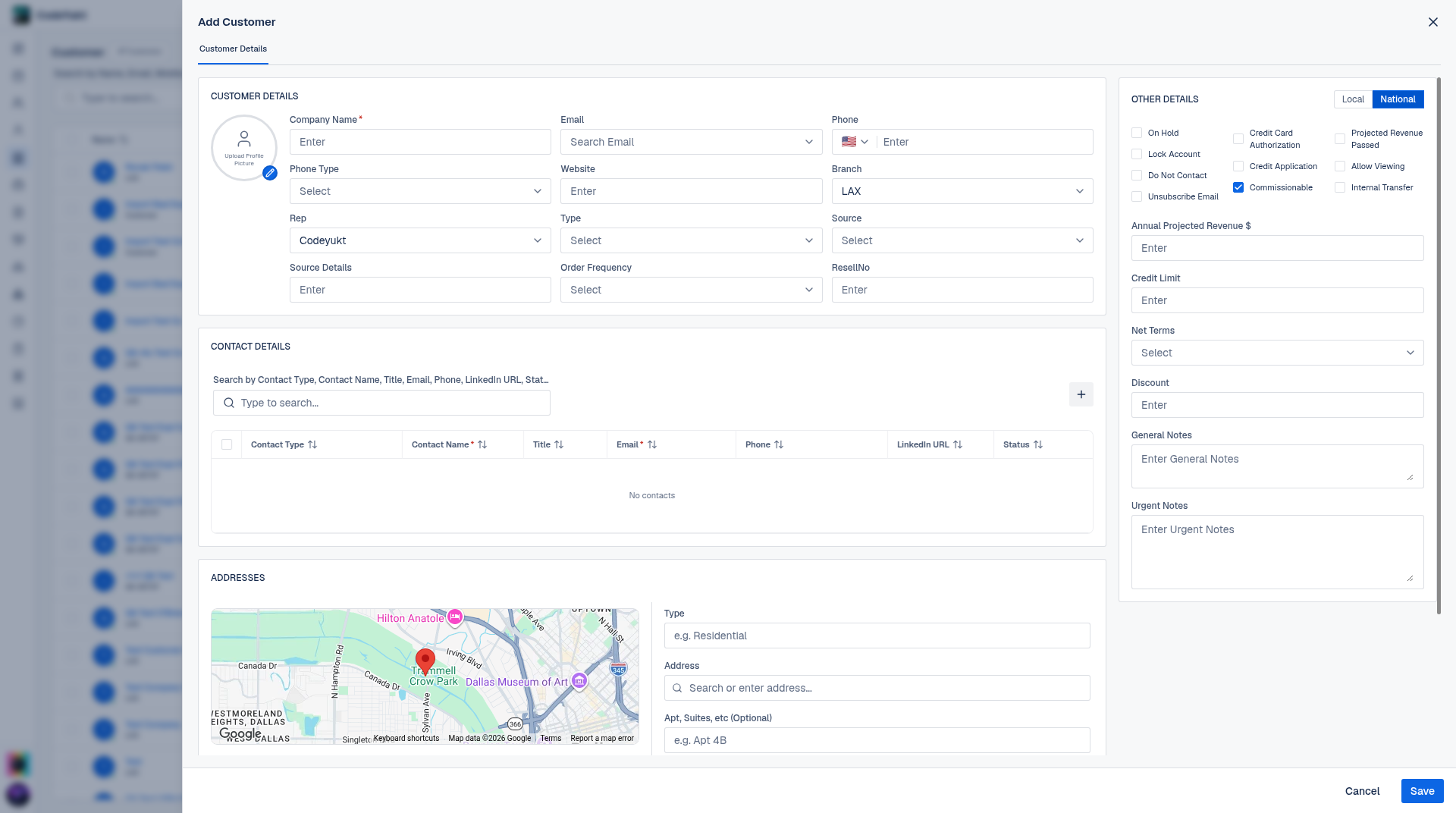
Click Customers in the sidebar, which opens /customer-list. The list has filters for search, Rep, Type, Source, Last Contract Date, and Status, plus Export and New buttons. Columns include Name, Phone, Email, Rep, Projected, Largest Cancelled, Largest Confirmed, Last Year, This Year, Last Activity (with an Add Activity action), and an Upcoming Job count.
How to add a customer
- Go to Customers and click New.
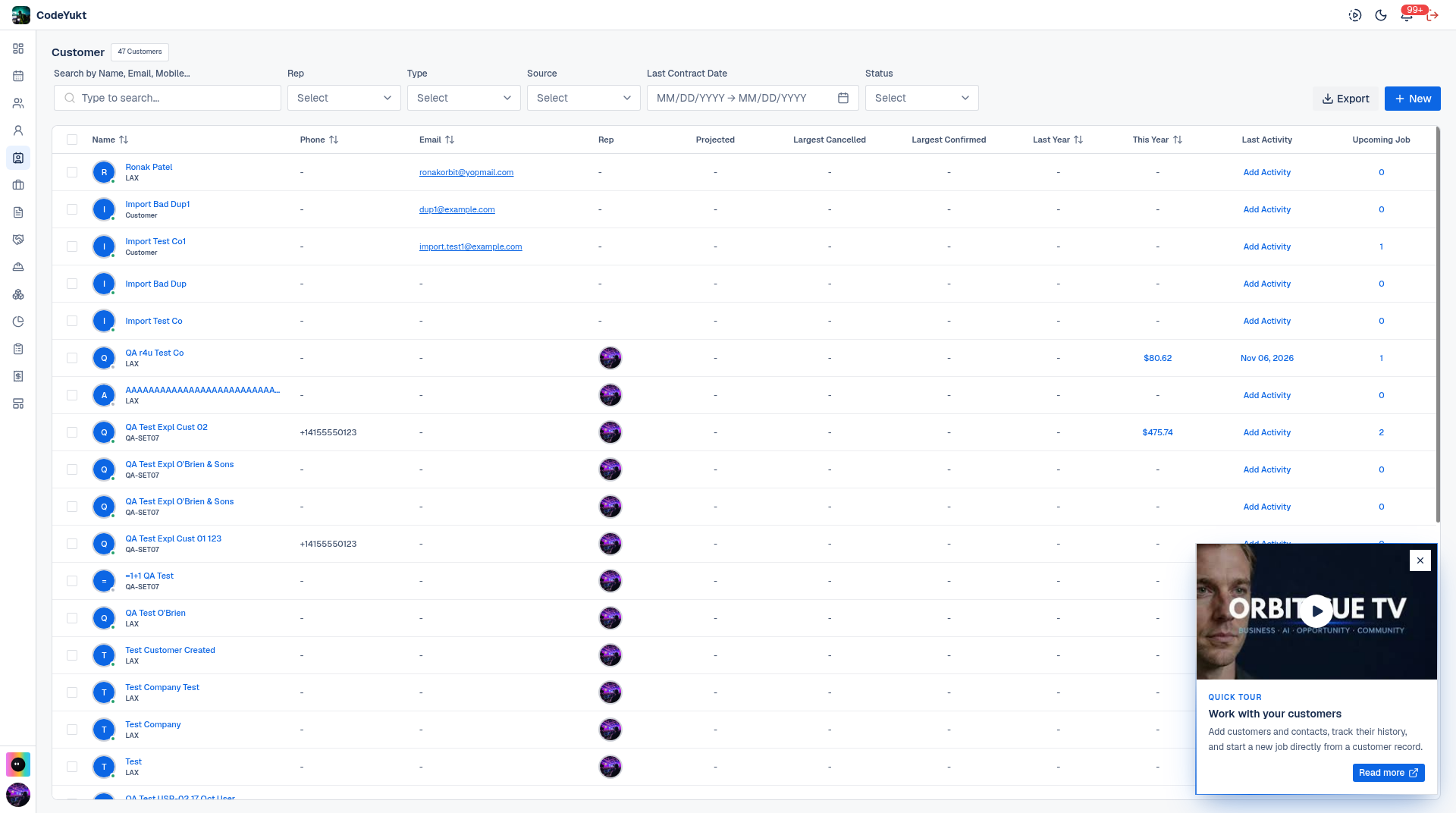
- Enter Company Name (required). Add Email, Phone, Phone Type, Website, Branch, Rep, Type, Source, Source Details, Order Frequency, and Reseller No as needed.
- Add people in the Contact table with the + control.
- Add addresses.
- Complete Other Details as they apply: Local or National; checkboxes for On Hold, Lock Account, Do Not Contact, Unsubscribe Email, Credit Card Authorization, Credit Application, Commissionable, Projected Revenue Passed, Allow Viewing, and Internal Transfer; plus Annual Projected Revenue, Credit Limit, Net Terms, Discount, General Notes, and Urgent Notes.
- Click Save.
The Customers list, with filters, Export and New, and a column of customer records.
The form used to add a new customer, including company details, contacts, addresses, and other details.