Getting around
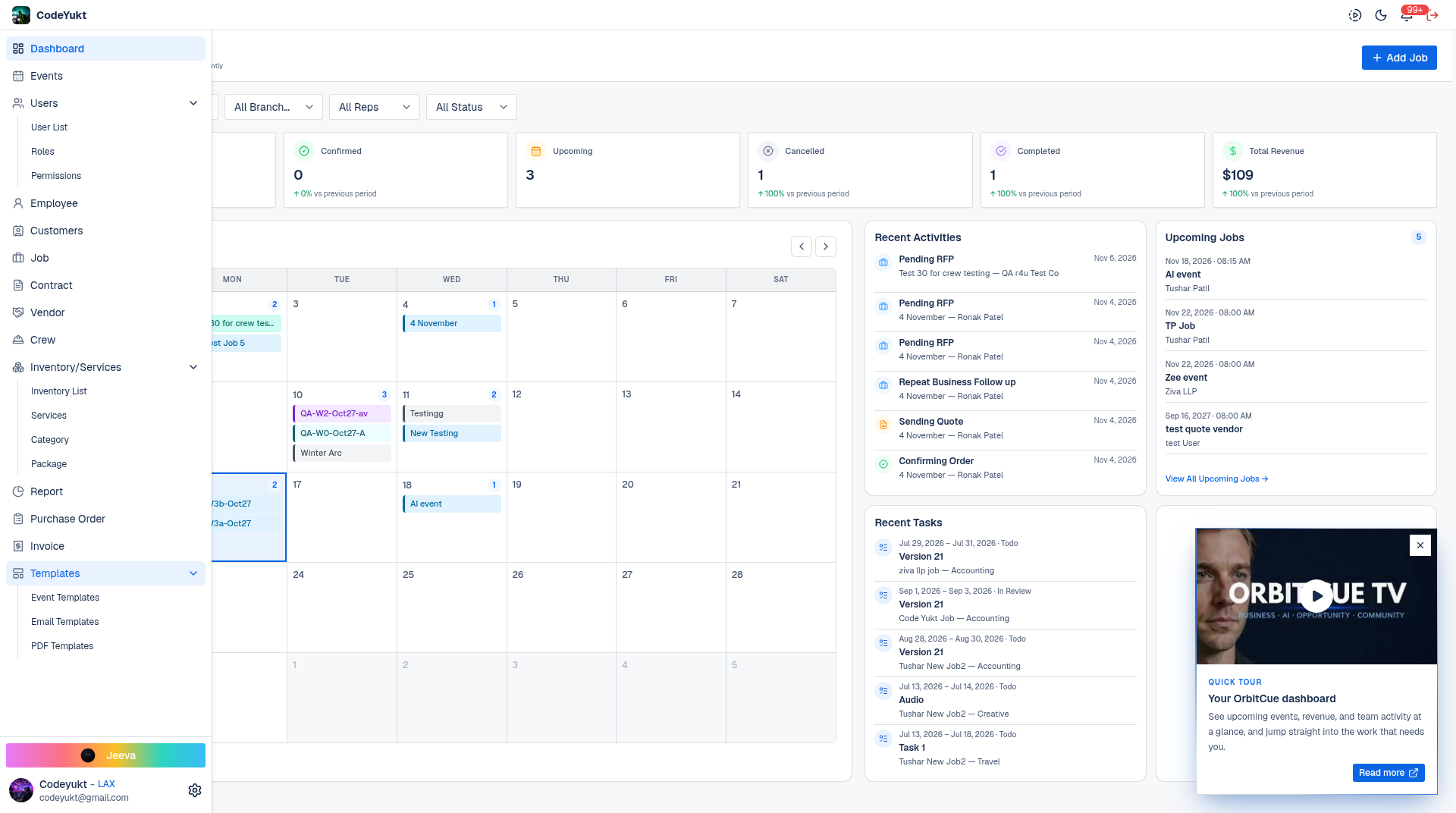
Once you are signed in, the left sidebar is the main way to move around. It stays icon-only until you hover over it; then it expands to show labels and any submenus.
Sidebar navigation
The expanded sidebar includes the following items, from top to bottom:.
- Dashboard
- Events
- Users, with submenus for User List, Roles, and Permissions
- Employee
- Customers
- Job
- Contract
- Vendor
- Crew
- Inventory/Services, with submenus for Inventory List, Services, Category, and Package
- Report
- Purchase Order
- Invoice
- Templates, with submenus for Event, Email, and PDF
- Jeeva, the in-app assistant
- Your user chip at the bottom of the sidebar, which opens Settings
The top bar
The top bar includes:
- Your user information
- A theme toggle, to switch between light and dark appearance
- A notifications bell, which opens your inbox
- Logout
Useful to know
After you sign in, you may see an “ORBITCUE TV Quick tour” popup. You can take the tour or close it and continue with this guide. Pages can take 5–10 seconds to load. Wait for tables and panels to finish before clicking again.
The sidebar expanded, with all main menus and submenus visible.
After you sign in, the first screen is the Dashboard (Jobs Calendar). That page is described in Dashboard / Jobs Calendar.