The Jobs list
The Jobs list (Job Page)
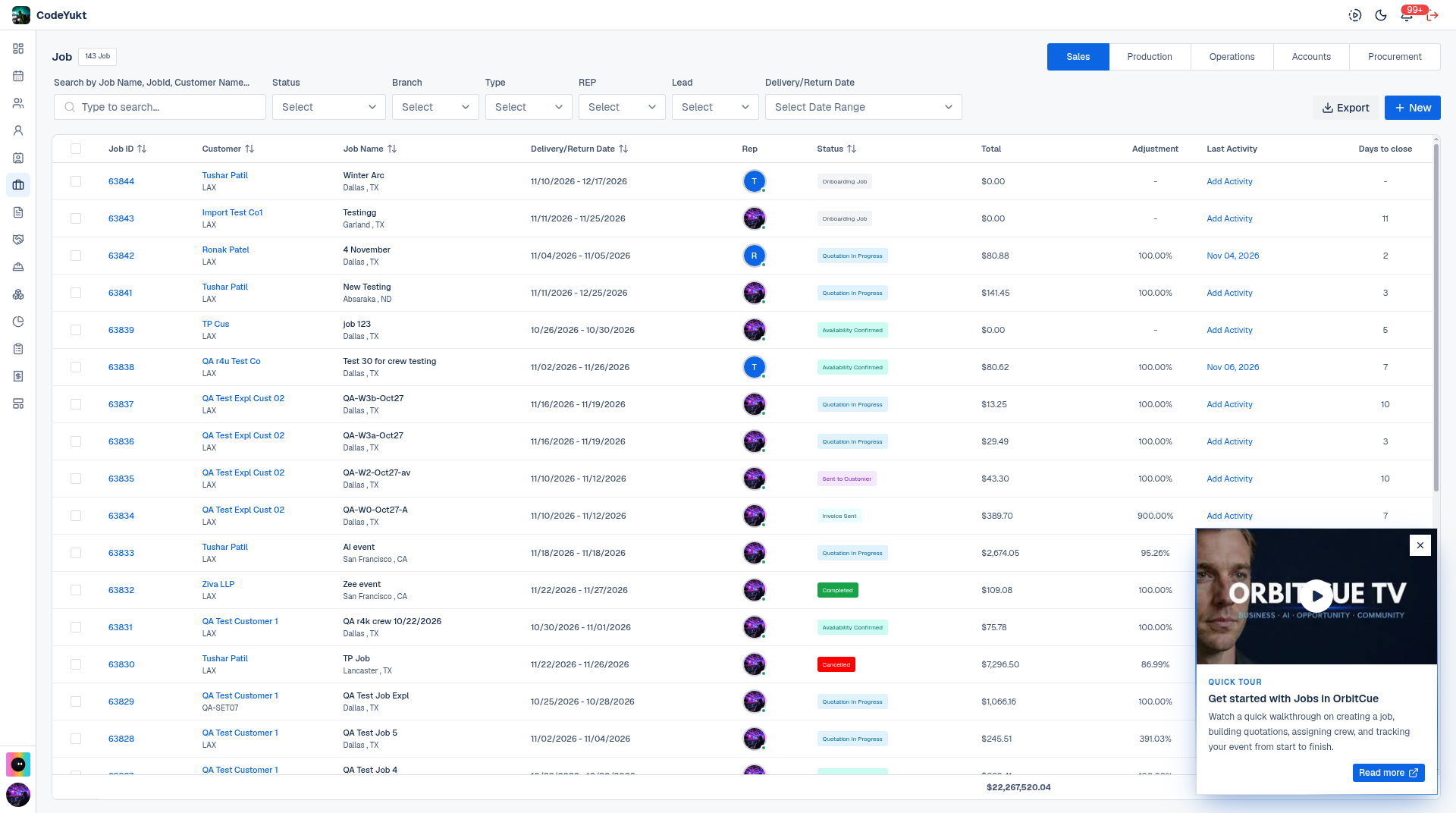
What it does: The Jobs list at /job-list is the company worklist for current jobs. You can search, filter, sort, export, create a job, and jump into the related workflow for a job. Creating a job always starts a locked quotation named Version 1 and then opens that quotation.
When to use it: This is the usual starting point for finding or creating jobs. Click Job in the sidebar.
How to use the Jobs list
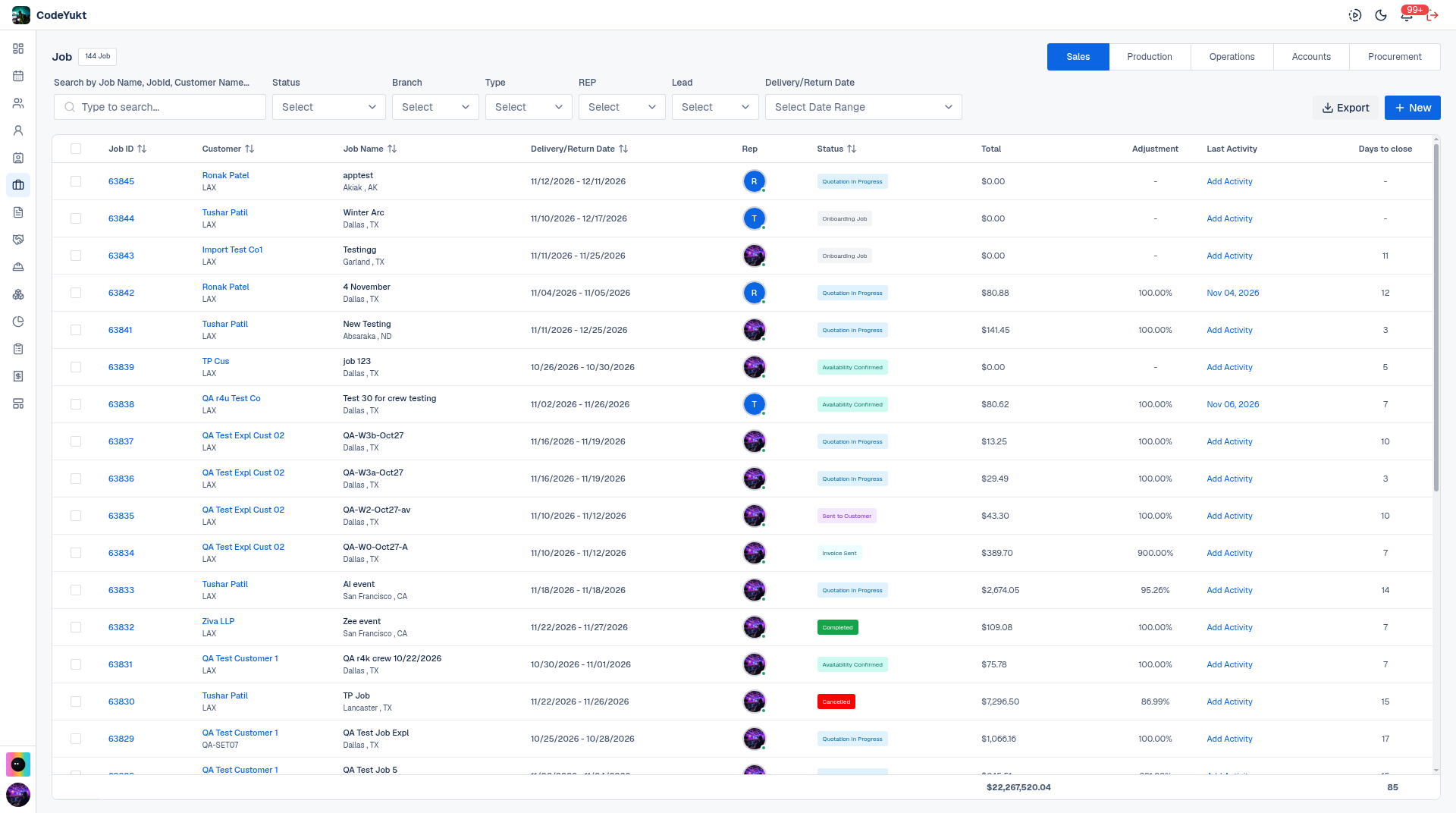
- Open Job in the sidebar. The page title is Job, with a job count. If you have no jobs yet, you will see an empty state and a New Job button (when you can create jobs).
- Use the department view radio group beside the title to change which columns you see. The default is Sales. Production, Operations, Accounts, and Procurement only change the columns — they do not change which jobs are listed.
- Search by job name, job ID, or customer name. Filters include Status, Branch, Type (customer type), REP, Lead, and Delivery/Return Date (presets such as This Month or a custom range). Apply confirms filters when the filter panel is open; Clear removes them.
- Click a sortable column header to sort; a third click clears the sort. The list loads more rows as you scroll (30 at a time). Job ID and Customer stay fixed on the left.
- Use the cells to open the next step: Job ID opens the quotation (or Old Job for a legacy record), Shortages opens Availability Check, Labor opens Crew Position, Filled opens Pick List, Returned opens the Equipment Report (Lost Report), Production or Logistics opens Event List, and Accounts or Procurement expense cells open Job Expenses in a new tab.
- Click Export to download jobs.csv for the current search and filters (up to 100 rows: customer, branch, job ID, job name, delivery/return date, and status).
- To mark jobs inactive or delete them, select rows (checkboxes appear when you can bulk-update or delete). The Status switch sets jobs active or inactive — inactive jobs still appear on the list. Delete asks you to confirm and then removes the jobs from the list (they are not permanently erased in a way you can undo from this page). If your selection mixes active and inactive jobs, the switch is disabled until you select only one kind.
Shared columns include Job ID, Customer, Job Name, Delivery/Return Date, Rep, Status, and Total. Missing text or amounts you cannot view show as a dash. You can add customer activity from the Sales view’s Last Activity column, email a Rep or Job Lead from their avatar when they have an email, and open a category time report from Operations Prep, D-Prep, or QC when a time exists.