The quotation builder
The quotation builder
What it does: The quotation builder at /quotation/{jobId} is where you build and price the quote: groups, packages, and line items, with versions you can lock, send to the customer, or convert to a contract.
When to use it: After you create a job (you land here automatically), or any time you click the Job ID on the Jobs list.
Important: An unlocked version is view-only. Lock a version to make it the active job quotation and to edit it. After a version is converted to a contract, it stays view-only and a banner reads “This quotation has been converted to a contract.”
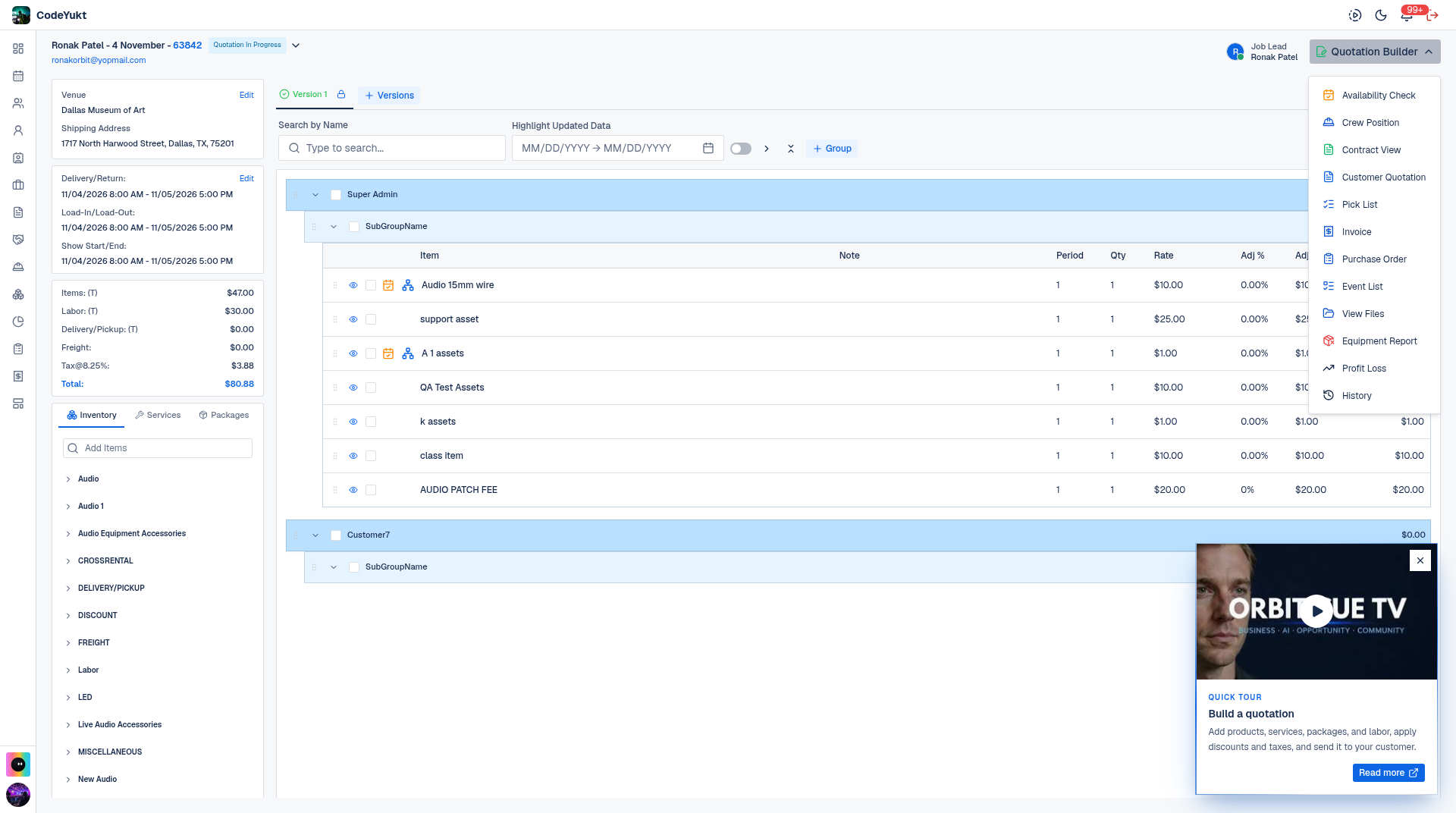
From the quotation (and other job pages), use the Quotation Builder dropdown — also labeled More Actions on some pages — to open Availability Check, Crew Position, Contract View, Pick List, Invoice, Purchase Order, and the other job views.
How to build and price the quote
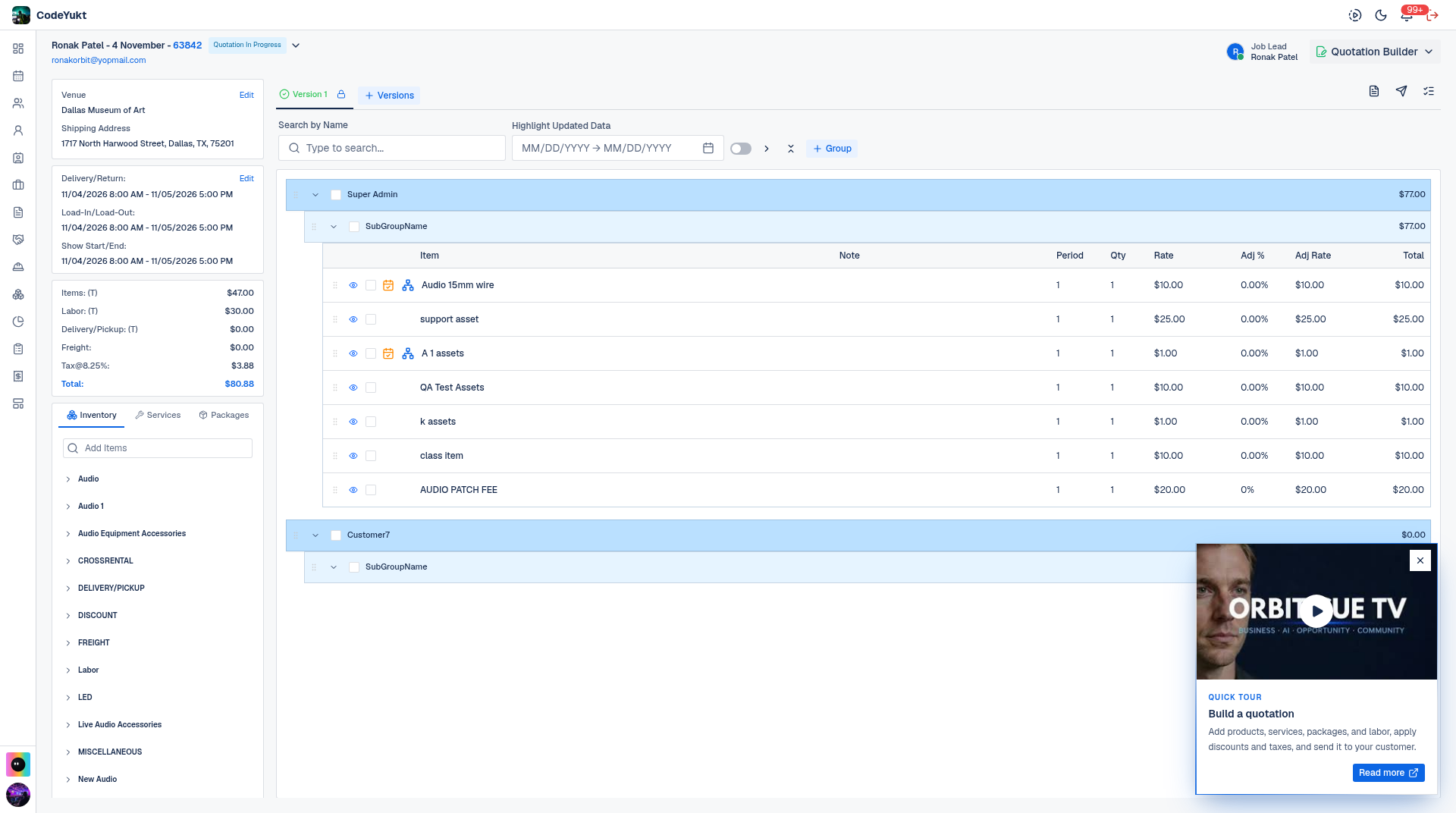
- Open the quotation. The header shows the job and status. The left sidebar shows venue and shipping, event dates, quote totals (Items, Labor, Delivery/Pickup, Freight, Tax, and Total), and catalog tabs for Inventory, Services, and Packages.
- To edit, lock the version first: open the menu (three dots) on the version tab and choose Lock. Only one version can be locked at a time. You cannot lock a different version while the currently locked quote has picked items, purchase orders sent to a vendor, or other fulfillment data.
- Click Group to add a group (a name is required unless you are getting structure from another job). Use Get From in that modal to copy a locked quotation from another job. Add subgroups from the group menu — you cannot add a subgroup to a group that already has direct line items.
- Drag items from the catalog, or use Add Line Item. Edit Note, Period, Qty, Rate, Adj %, and Adj Rate on each line. Quantity must be a whole number from 1 to 100,000; adjustment must be between 0 and 100. Period or qty left empty falls back to 1.
- Use the selection bar for bulk update (qty, period, adj %), copy and paste, assign dates, hide or show rows, room/booth, comments, or delete. You cannot copy or restructure items that have already been picked, included on a PO sent to a vendor, or otherwise locked by fulfillment.
- To add another version, click Versions (+). You can name it (required, unique for the job, max 255 characters) and optionally copy an existing version. Rename or delete from the version tab menu. You cannot delete the only version, and you cannot delete a locked version.
- Changes autosave. There is no separate Save button on this page.
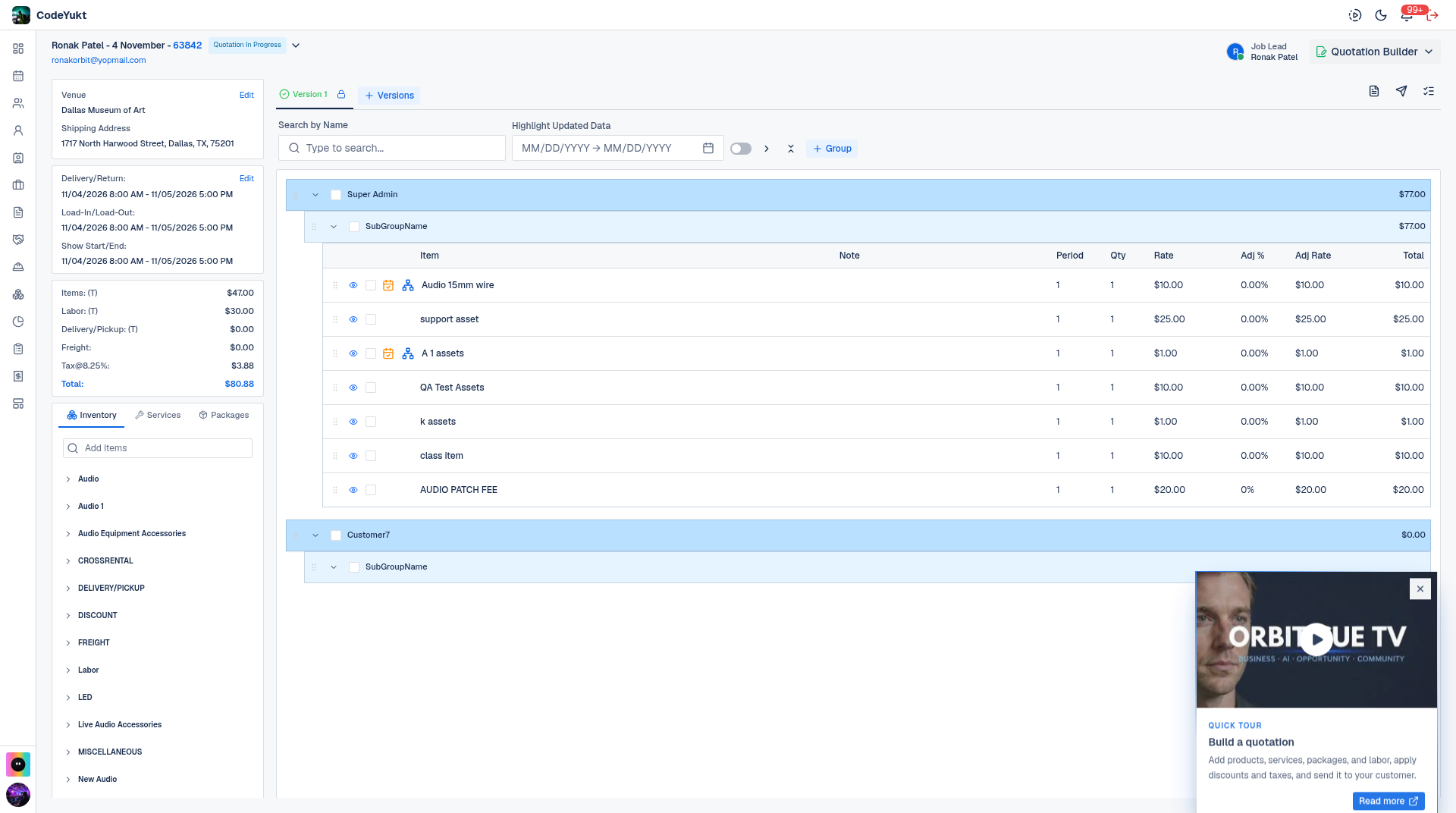
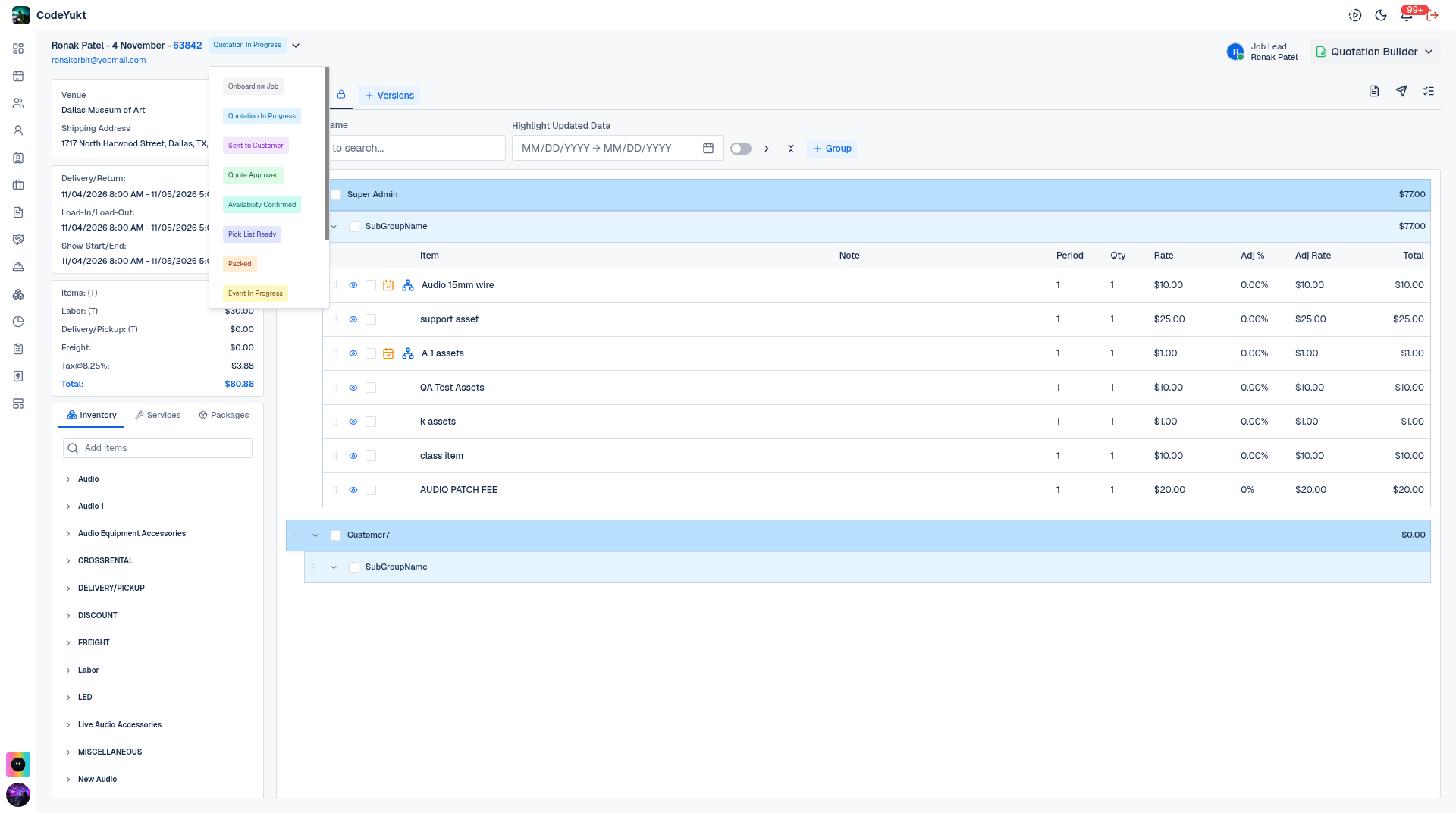
The quotation builder, with version tabs, catalog panels, and the line-item tree.
The job status dropdown on the quotation header, with the workflow statuses you can select.
How to send the quotation to the customer
- The job status must be exactly Quotation In Progress or Sent to Customer.
- Click Send To Customer.
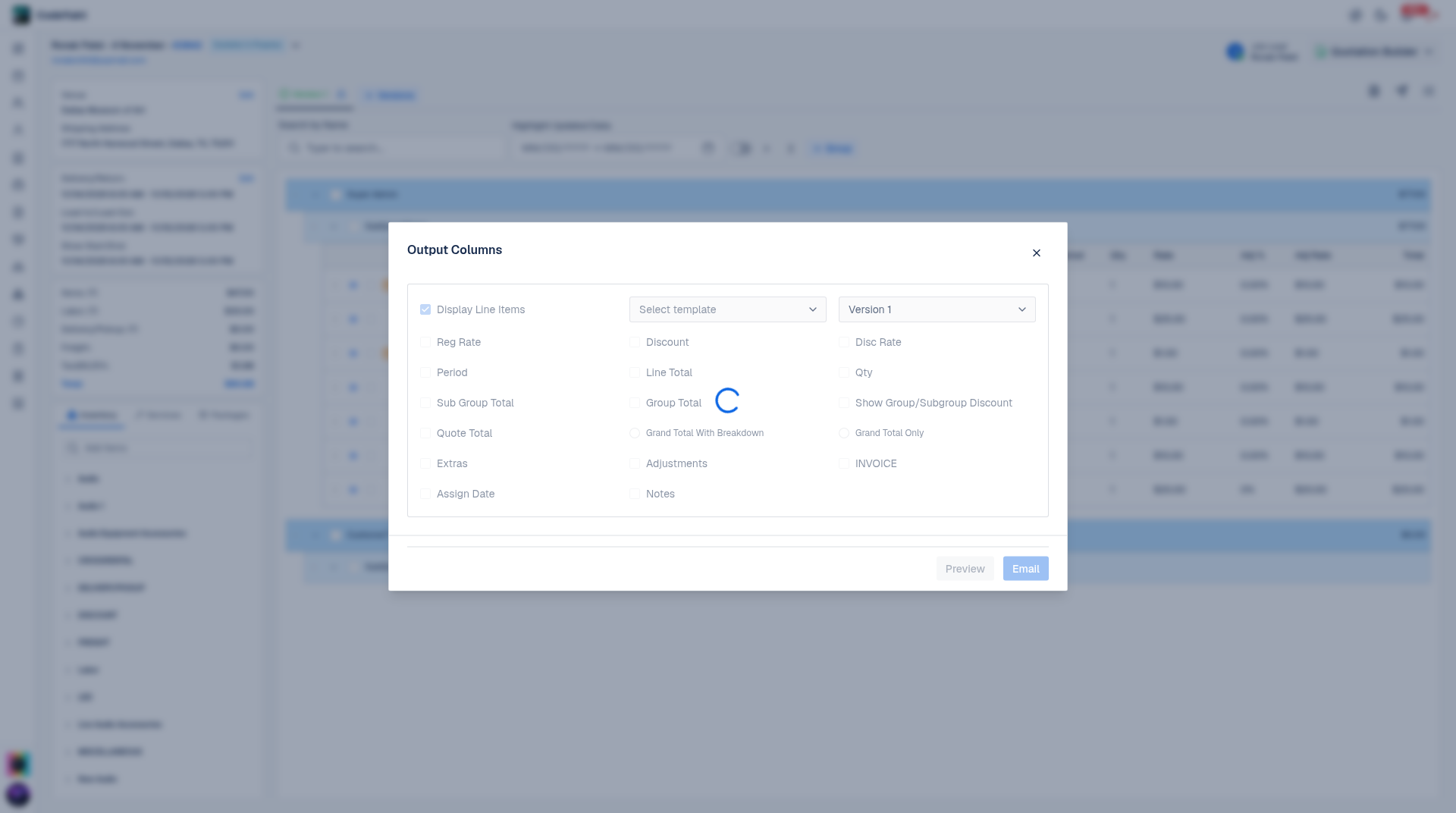
- In Output Columns, choose a template and the version (the locked version is the default), and tick the columns to include — for example Reg Rate, Period, Qty, Notes, discounts, line/group/quote totals, Assign Date, Extras, Adjustments, and Invoice. Choose Grand Total with Breakdown or Grand Total Only.
- Click Preview if you want to review the PDF, then Email. The message attaches Quotation.pdf, with a default subject of “Quotation for Event Equipment.” Send it. You should see “Quotation sent successfully!” The job status moves to Sent to Customer. You can send again later if needed.
The Output Columns window used to send a quote, with column checkboxes, Preview, and Email.
How to convert the quote to a contract
- The active version must be locked, not already converted, and must contain at least one group.
- Click Convert To Contract.
- If shortages remain, you will see “Cannot Convert to Contract” / “Please complete all shortages in Availability Check.” Finish Availability Check first.
- On success, the version becomes a contract and this builder stays view-only. Use Contract View to send the contract to the customer.
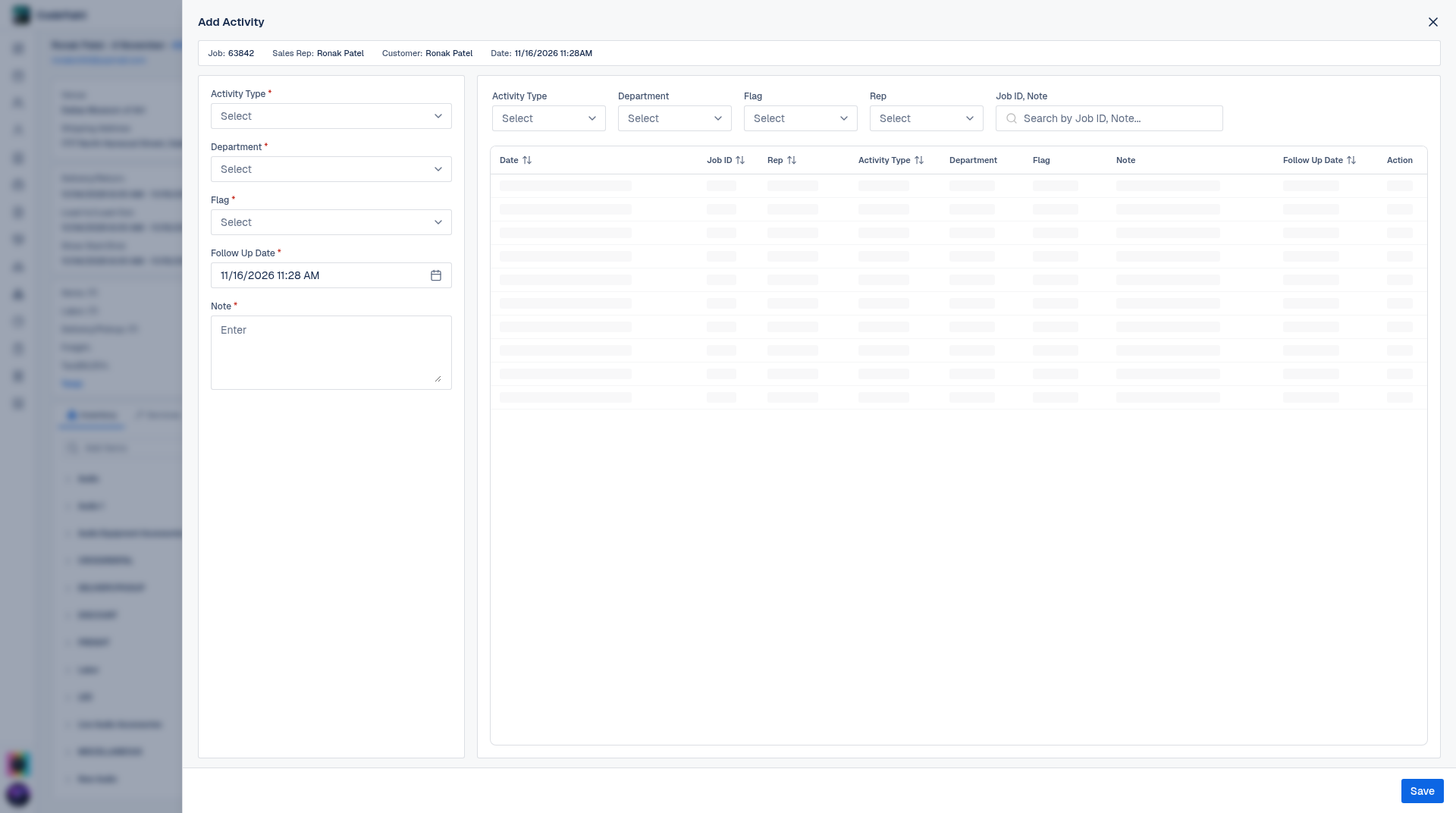
Use the tasks icon or Activity to review or add job activity. In Add Activity, Activity Type, Department, Flag, Follow Up Date, and Note are required; recent activity appears on the right. Use All Comments to work with comments on the tree.
The Add Activity drawer, with activity type, department, flag, follow-up date, note, and activity history.
Customer Quotation
What it does: Customer Quotation at /customer-quotation/{jobId} is the staff view of the active customer quotation snapshot — the packages, groups, and lines the customer sees, plus comments. It does not include Send To Customer or Approve.
When to use it: After a quote has been sent, when you want to review the customer-facing snapshot or add comments.
How to review the customer quotation
- From the job view switcher, choose Customer Quotation.
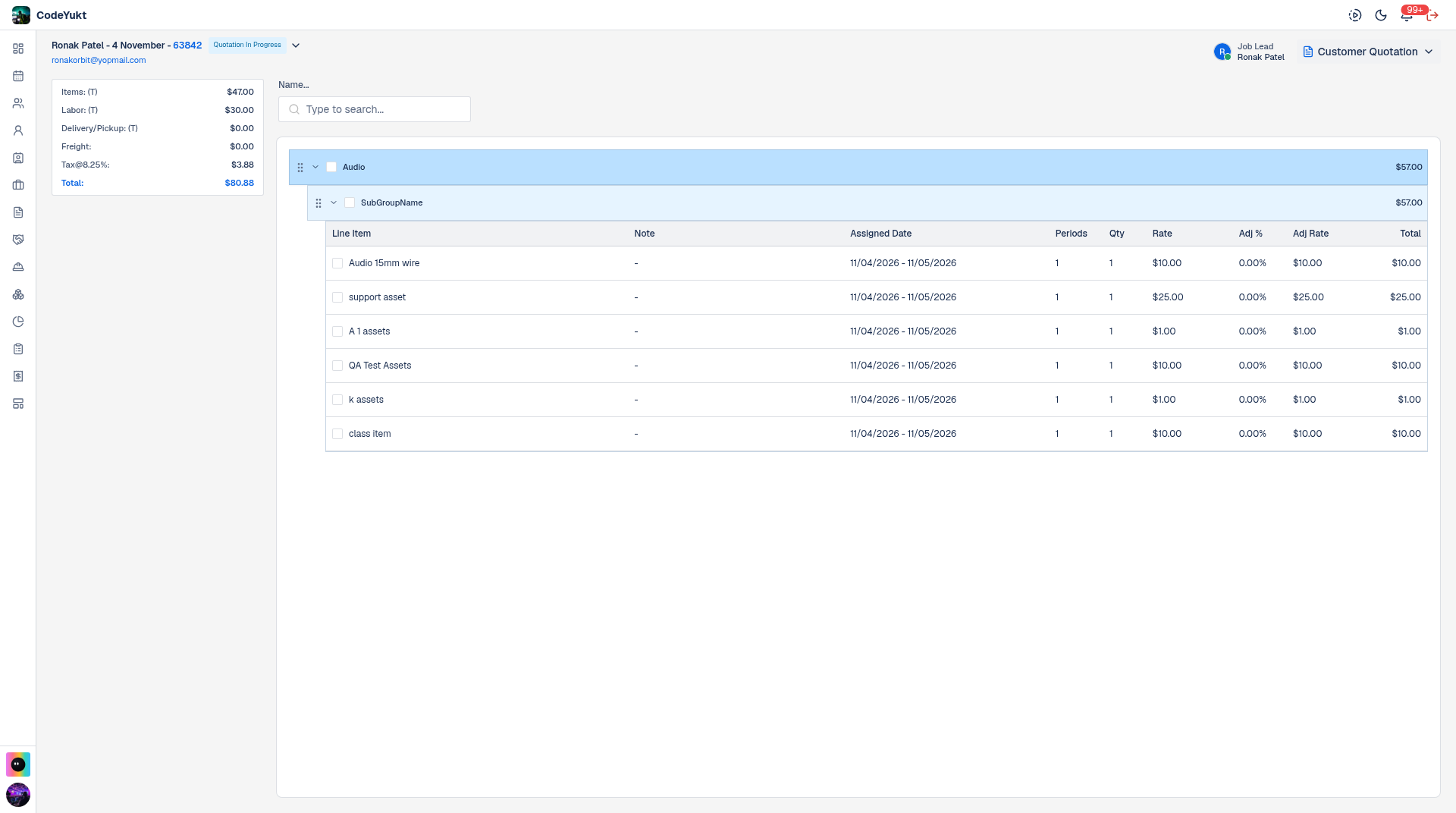
- Search by name if you need to filter the tree. If there is no snapshot, you will see “No data.”
- Open a line to add a comment (up to 1,000 characters), or select lines and use Add Comments to post the same comment to several items. Use All Comments to read the full conversation.
- Job details in the sidebar are not editable on this page.
The Customer Quotation page, showing the customer-facing grouped quote with line-item columns and search.
Contract View
What it does: Contract View at /contract-view/{jobId} shows the locked quotation version that has been converted to a contract. You can comment on lines and send the contract PDF to the customer.
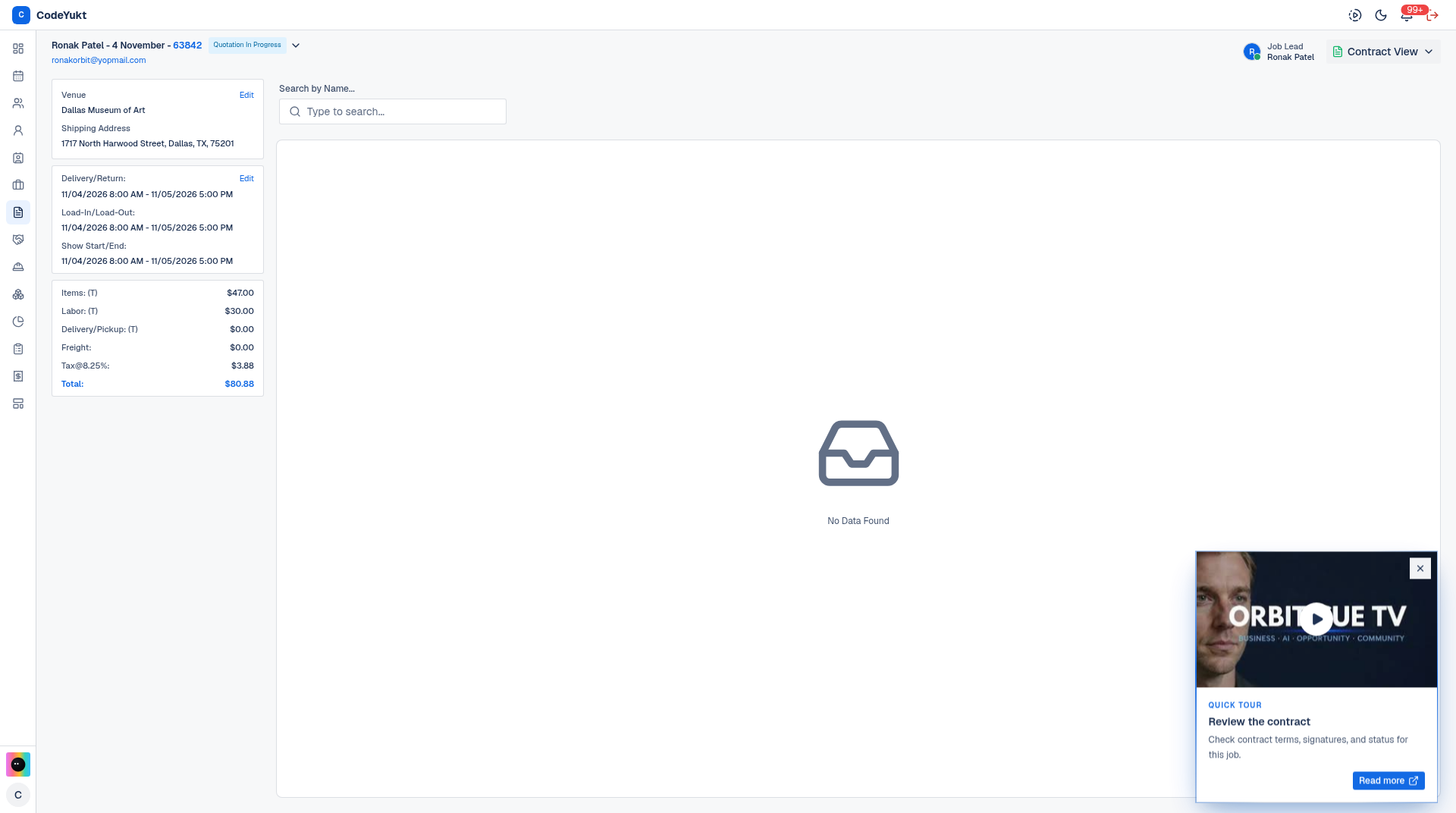
When to use it: After Convert To Contract succeeds. If no locked converted version exists, the tree and Send To Customer stay empty.
How to review and send a contract
- From the view switcher, choose Contract View (you can also open it from the Contracts list or a venue job link).
- Search the tree by name. Columns follow the customer’s display settings (line item, periods, qty, rate, adj %, adj rate, total).
- Add comments on a line, or select lines and Add Comments. Use All Comments to review them. A comment cannot be empty (maximum 1,000 characters).
- To send, click Send To Customer. The email composer is titled “Send Quotation” and attaches Quotation.pdf.
The Contract View page, with job summary on the left and the contract lines (empty until the job is converted to a contract).