Templates
Templates are reusable event, email, and PDF layouts so quotes, invoices, and messages stay consistent.
How to get there
Open Templates in the sidebar and choose Event, Email, or PDF.
Event templates
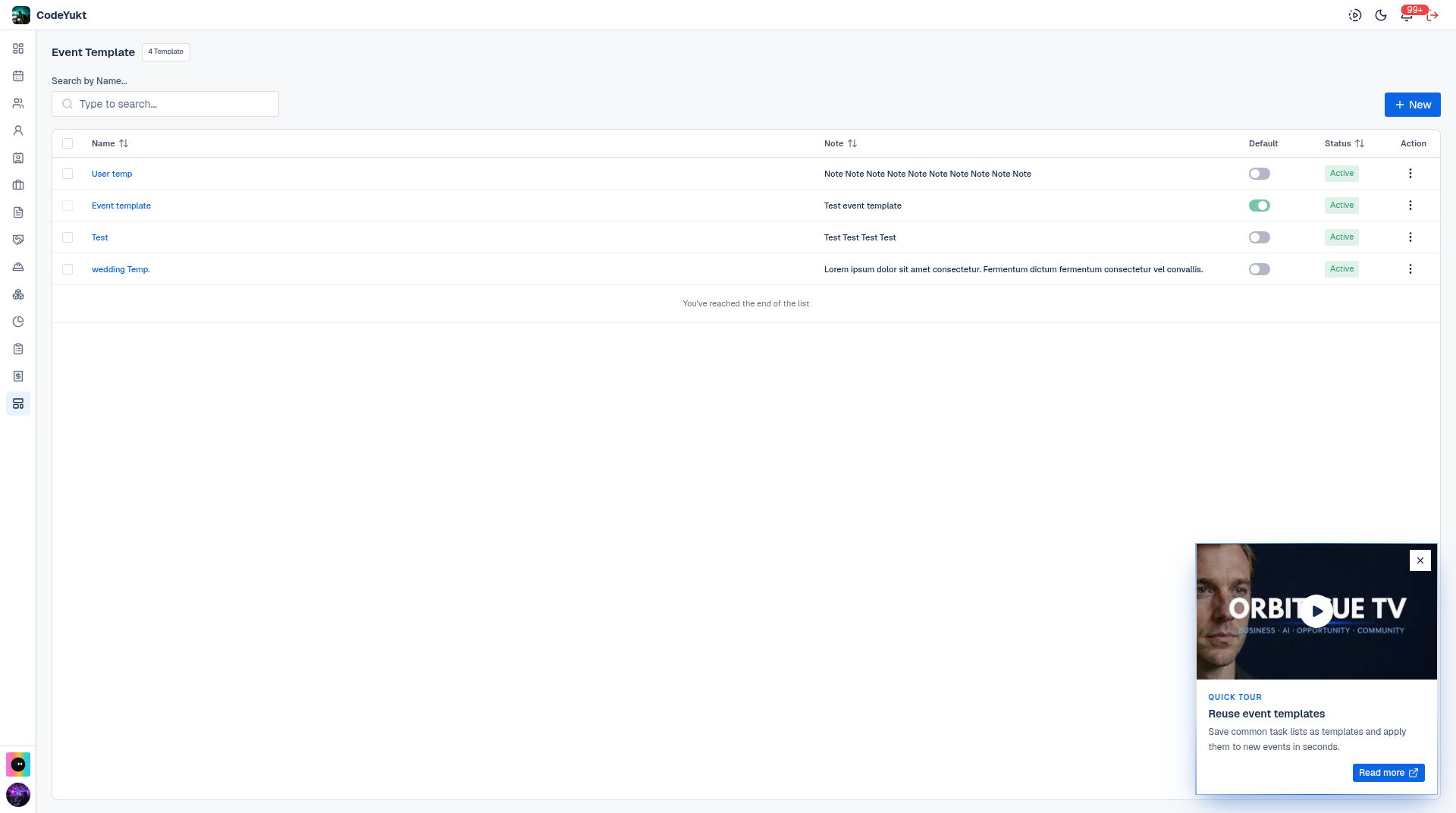
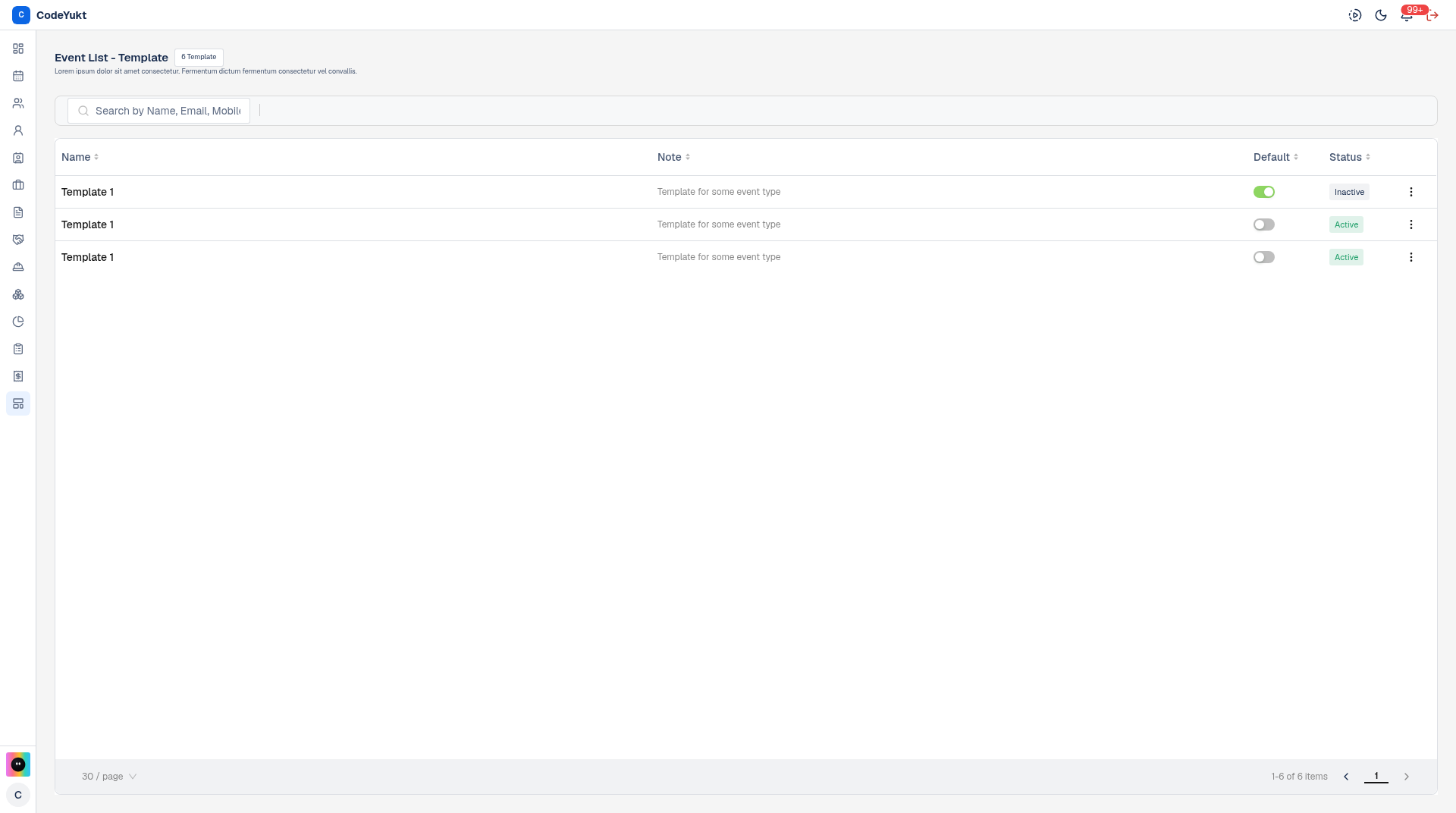
Event templates are reusable task lists you assign to a job from Event List. Open Templates in the sidebar, then Event Templates. The list includes search, Name, Note, a Default toggle, Status, and a row menu.
How to create and maintain event templates
- Click New Template. The form asks for a Name (required). If you include a Note, it must be between 10 and 500 characters. Save the template.
- Open the template’s tasks. Click New Task and fill in Task Name, Department, Date, Before/After, and Days (at least 1), plus optional duration and note. Save.
- Use the Active/Inactive switch when a template or task should no longer be offered. Inactive templates are hidden from the job’s Add Template modal. Edit or delete from the row menu (delete asks you to confirm).
To assign a template to a job, open Event List from that job and use Add Template, as described in Returns, events, and history.
The Event templates list, with name, note, default toggle, and status.
Email templates
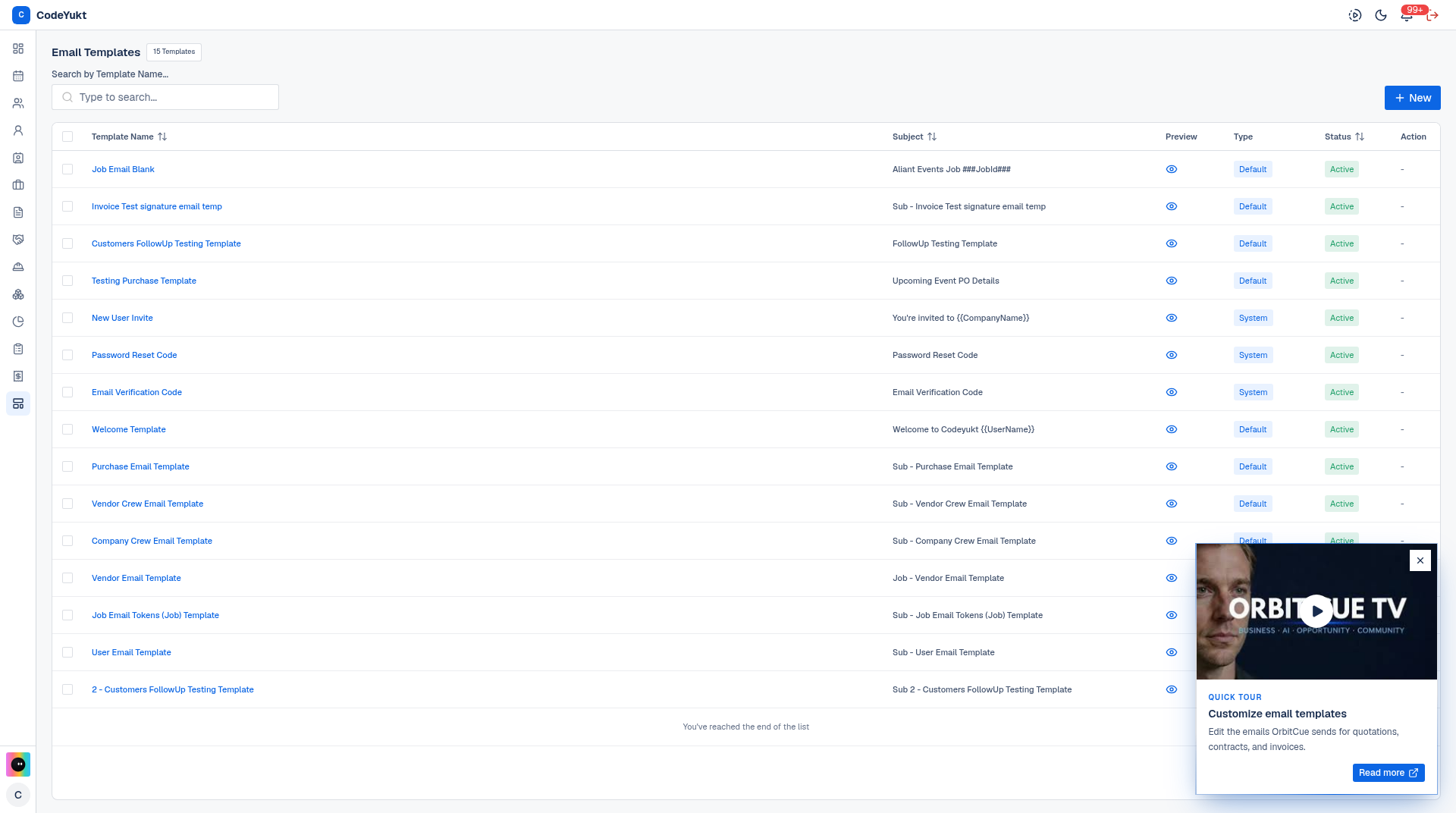
Email templates have Search and New. Columns include Template Name, Subject, a Preview eye icon, Type (Default or System), and Status. Examples include New User Invite, Password Reset Code, Welcome, and Purchase, Vendor, and Crew emails.
The Email templates list, with template name, subject, preview, type, and status.
PDF templates
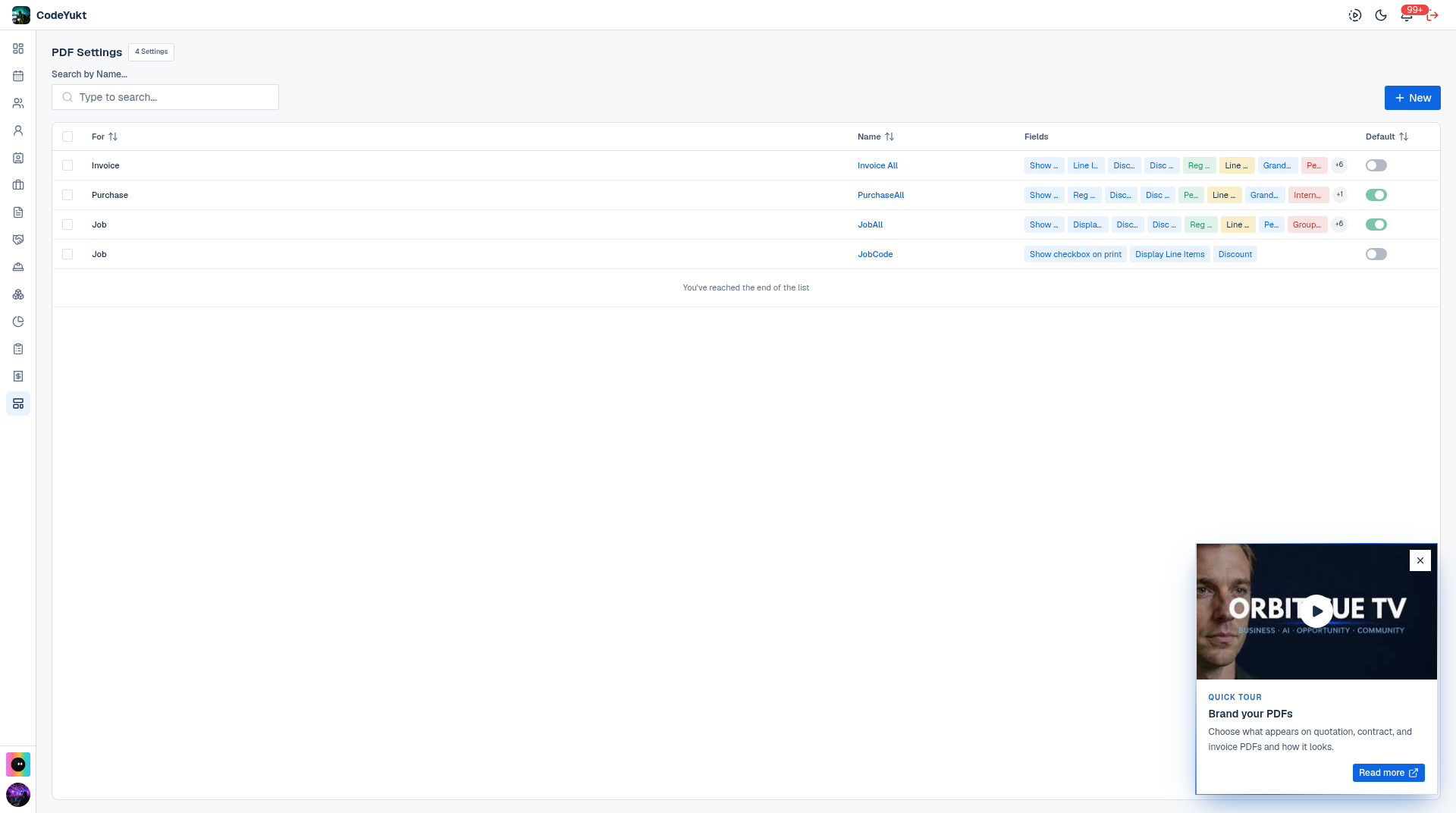
PDF templates are at /templates/pdf-settings. The page has Search and New. Columns include For (Invoice, Purchase, or Job), Name, field chips for the columns shown on the PDF, and a Default toggle.
The PDF templates list, with the document type, name, field chips, and default toggle.